D2图形表示故事
D2 ,Declarative Diagramming,图形表示的现代描述语言。用 D2 语言可以描述图形表示,通过 d2 命令转化为图形表示。
input: "input.d2"
output: "output.svg"
input -> output: "d2 input.d2 output.svg"
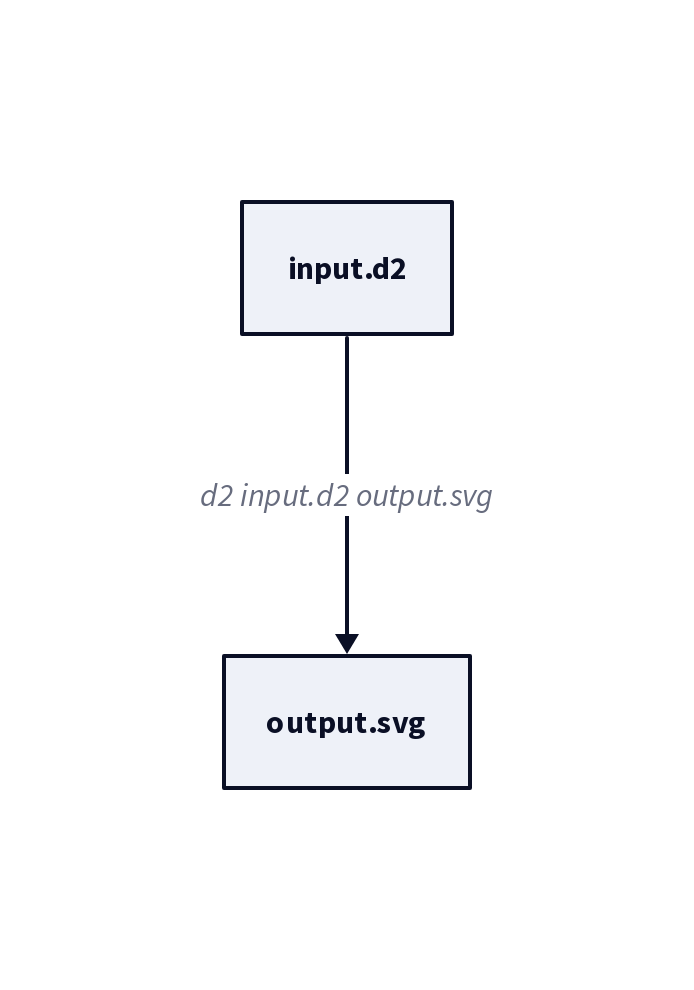
d2 的竞争对手是 Mermaid 和 PlantUML 。说实在这两个都是不好招惹的主,对比三者是一门显学。
d2 命令的安装
curl -fsSL https://d2lang.com/install.sh | sh -s --
d2 install.sh 要从 Github Release 下载,国内也不是很方便。CachyOS 仓里有 d2 命令
sudo pacman -S d2
或者用 Go 安装
go install oss.terrastruct.com/d2@latest
d2 支持 3 种布局管理器 d2 layout
- dagre (开源内置)
- elk (开源内置)
- tala (闭源单装)
d2plugin-tala 的安装
curl -fsSL https://d2lang.com/install.sh |
    sh -s -- --tala
d2plugin-tala 有个例子 sample_2.d2 ,这个例子看三种布局不同,也熟悉下
d2 的基本语法
# file: sample_2.d2
# 方向设置,left, right, up, down
# 只有 tala 布局支持局域方向设置
direction: right

# 图示:key:[value][{options}]
# value 空用 key
logs: {
  shape: page
  style.multiple: true
}

# value 里可以有空格
user: AT&T Customer {shape: person}

# 容器使用: key:[value]{shapes;connections}
network: Network {
  tower: Cell Tower {
    satellites: {
      shape: stored_data
      style.multiple: true
    }
    # 最简单图示
    transmitter

    satellites -> transmitter
    satellites -> transmitter
    satellites -> transmitter
  }
  processor: Data Processor {
    storage: Storage {
      shape: cylinder
      style.multiple: true
    }
  }
  portal: Online Portal {
    UI
  }
  # connections 用法
  tower.transmitter -> processor: phone logs
}

server: API Server

user -> network.tower: Make call
network.processor -> server
network.processor -> server
network.processor -> server

server -> logs
server -> logs
server -> logs: persist

server -> network.portal.UI: display
user -> network.portal.UI: access {
  style.stroke-dash: 3
}
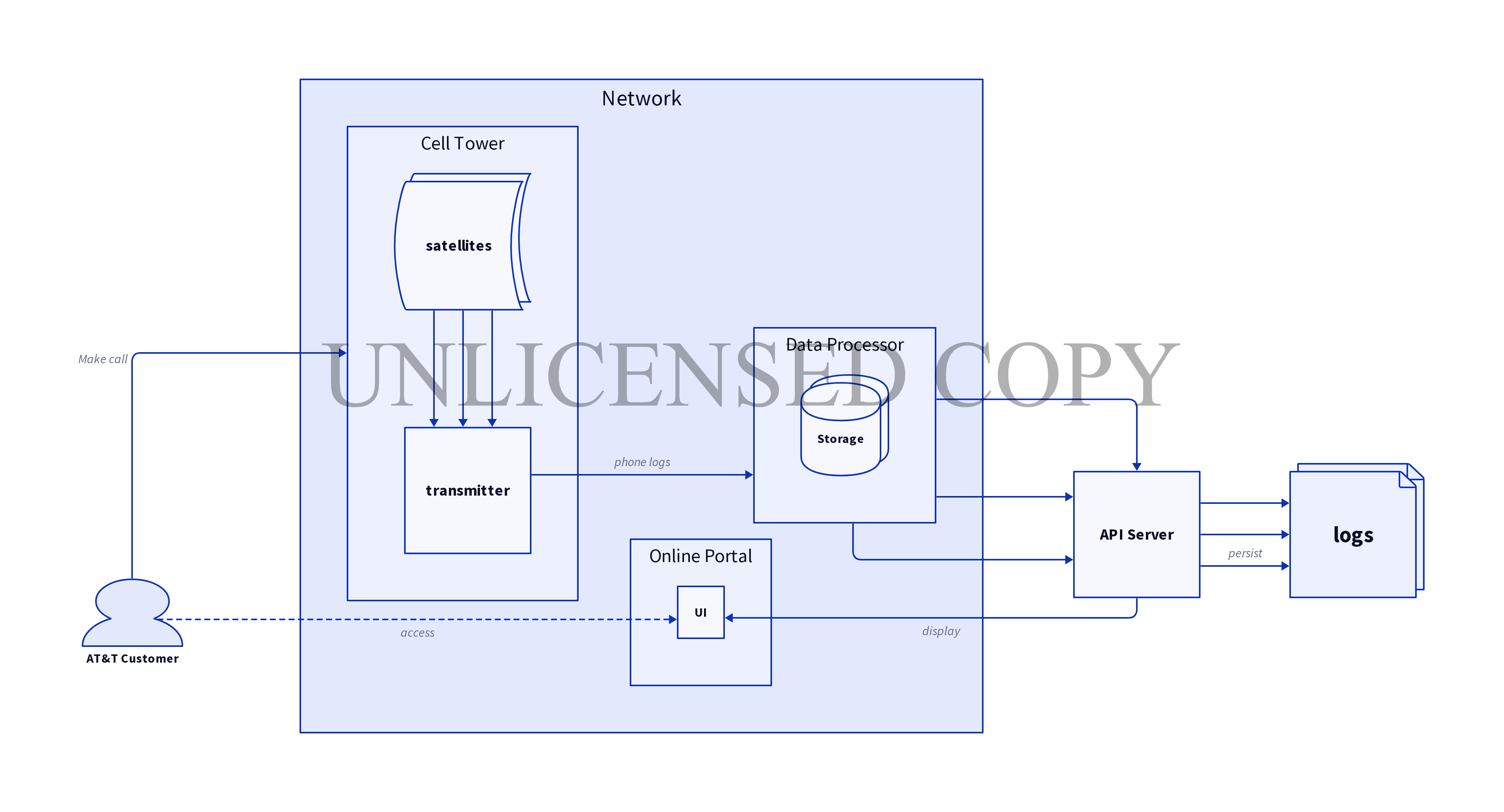
Figure 1: d2 –layout tala sample_2.d2 sample_2_tala.png
tala 布局最好,要去掉水印,需要每月 19 美元订阅,连续订阅 12 月永久拥有。
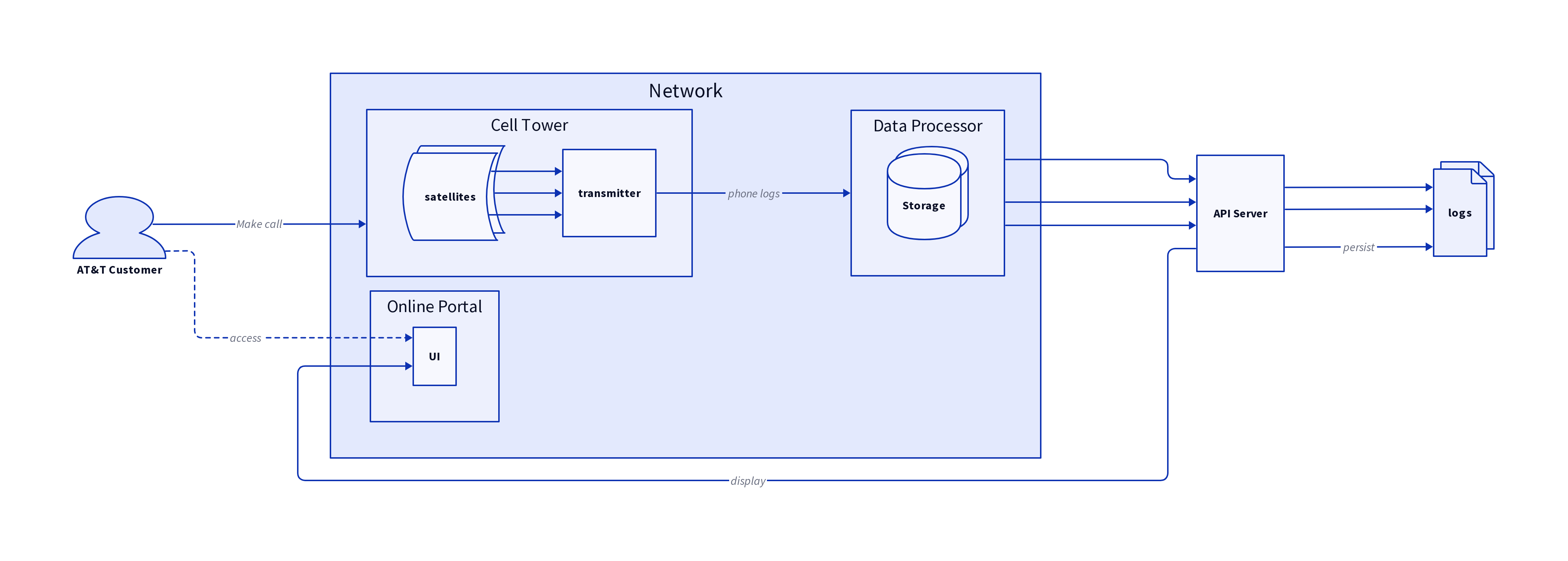
Figure 2: d2 –layout elk sample_2.d2 sample_2_elk.png
elk 布局与 tala 接近,连线以直线为主。不同是容器不能有不同朝向。观察
Cell Tower 容器, tala 里 direction: down , elk 里 direction: right
和 root 一样。
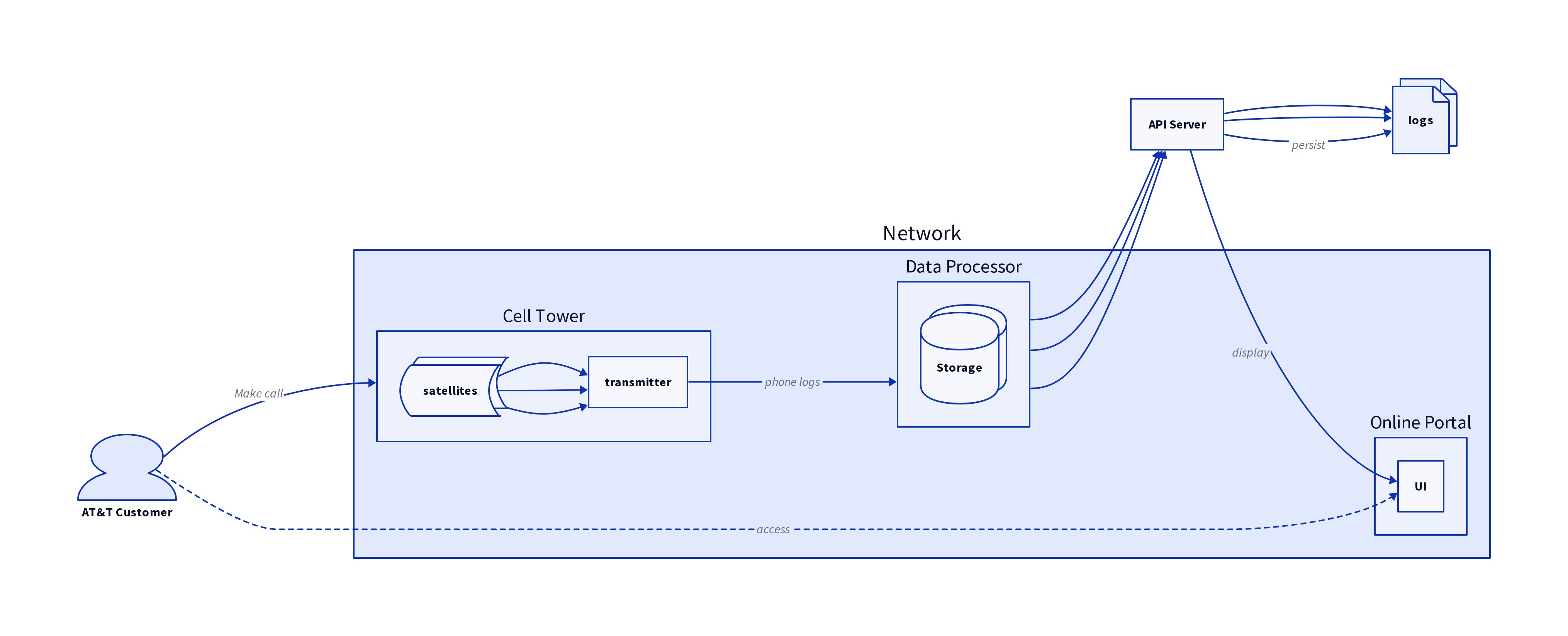
Figure 3: d2 –layout dagre sample_2.d2 sample_2_dagre.png
dagre 布局连线不以直线为主,感觉有些乱。 sample_2.d2 里揭示了 d2 基本元素
- Shapes - 图示
- Connections - 连线
- Containers - 容器
掌握基本元素用法一般的图都可以画了,除了时序图(Sequence Diagram)
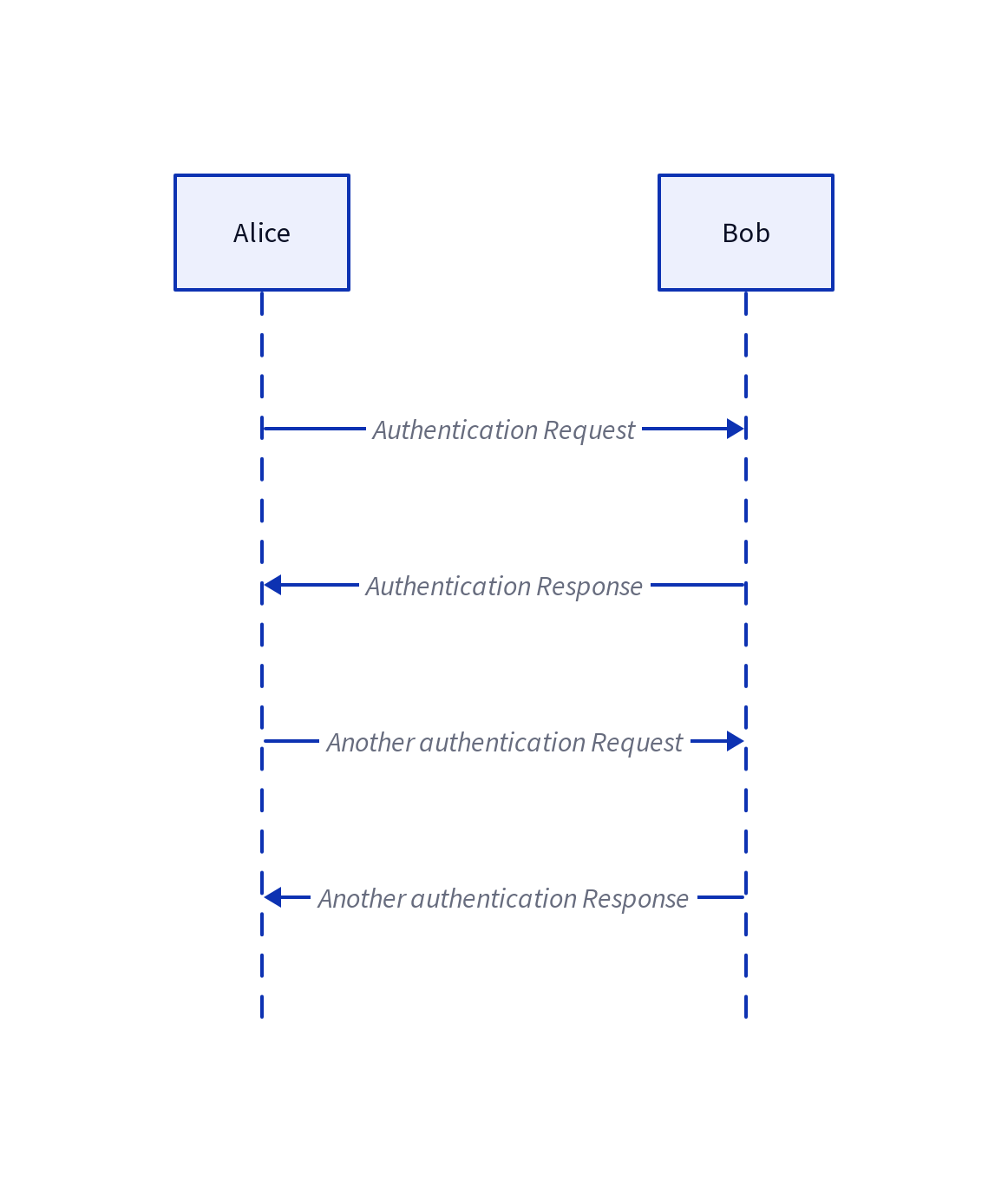
Figure 4: d2 sequence.d2 sequence.png –layout elk
诀窍在于设置 Root Board 的 shape: sequence_diagram 。时序图是 PlantUML
的看家本领。UML 类图
# file: uml-class.d2
Duck: {
  shape: class
  beakColor: String
  swim(): void
  quack(): void
}
Fish: {
  shape: class
  -sizeInFeet: int
  -canEat(): boolean
}
Zebra: {
  shape: class
  is_wild: bool
  run(): void
}
Animal: {
  shape: class
  age: int
  gender: String
  isMammal(): bool
  mate(): void
}
Duck -> Animal
Fish -> Animal
Zebra -> Animal
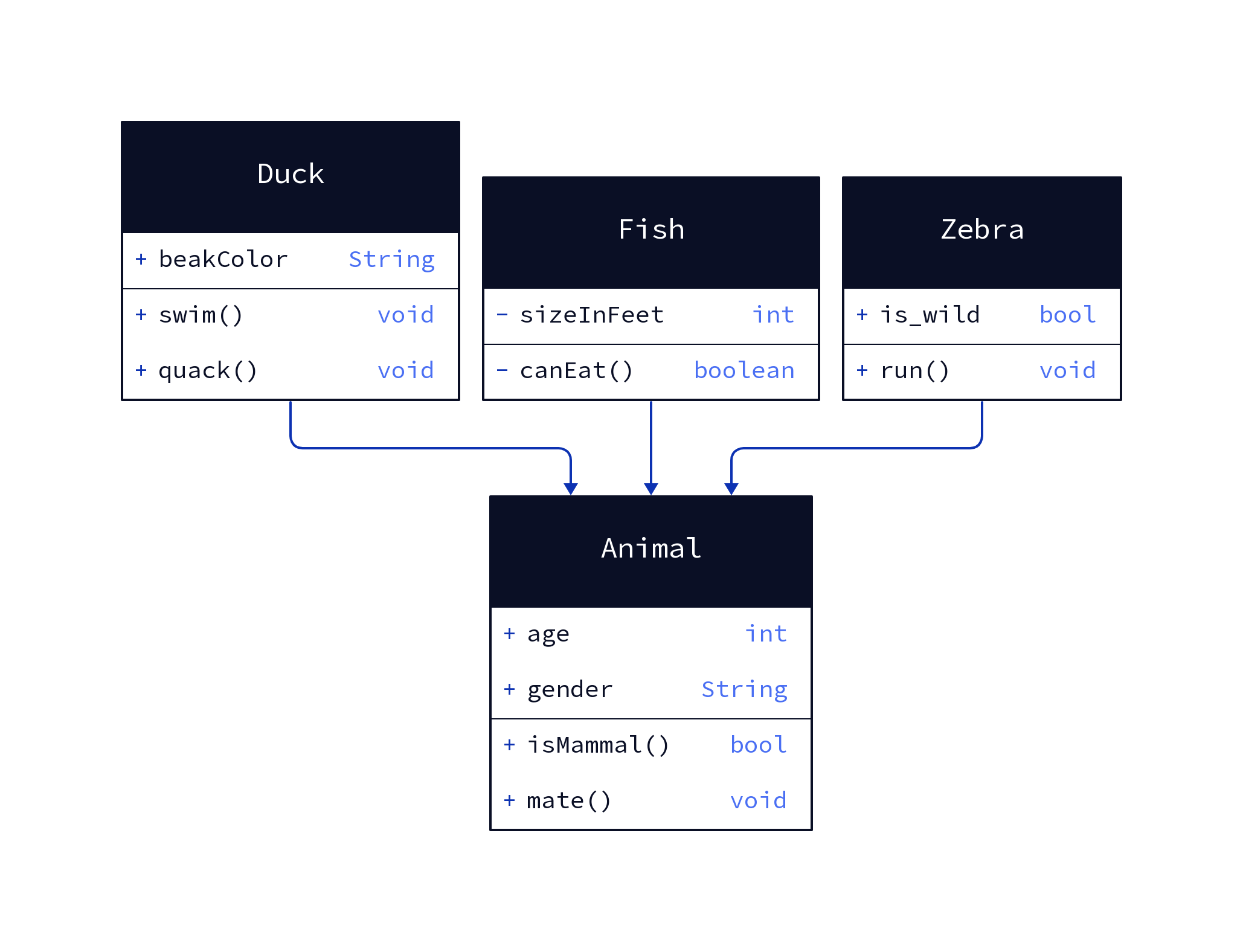
Figure 5: d2 uml-class.d2 uml-class.png –layout elk
诀窍是设图示的 shape: class 。SQL Table 图
# file: sql_table.d2
car: {
  shape: sql_table

  id: int {constraint: primary_key}
  last_updated: timestamp with time zone

  make: string
  model: string
  year: int
}

factory: {
  shape: sql_table

  id: int {constraint: primary_key}

  country: string
}

factory_car_support: {
  shape: sql_table

  id: int {constraint: primary_key}

  factory: int {constraint: foreign_key}
  car: int {constraint: foreign_key}
}

factory_car_support.factory -> factory.id
factory_car_support.car -> car.id
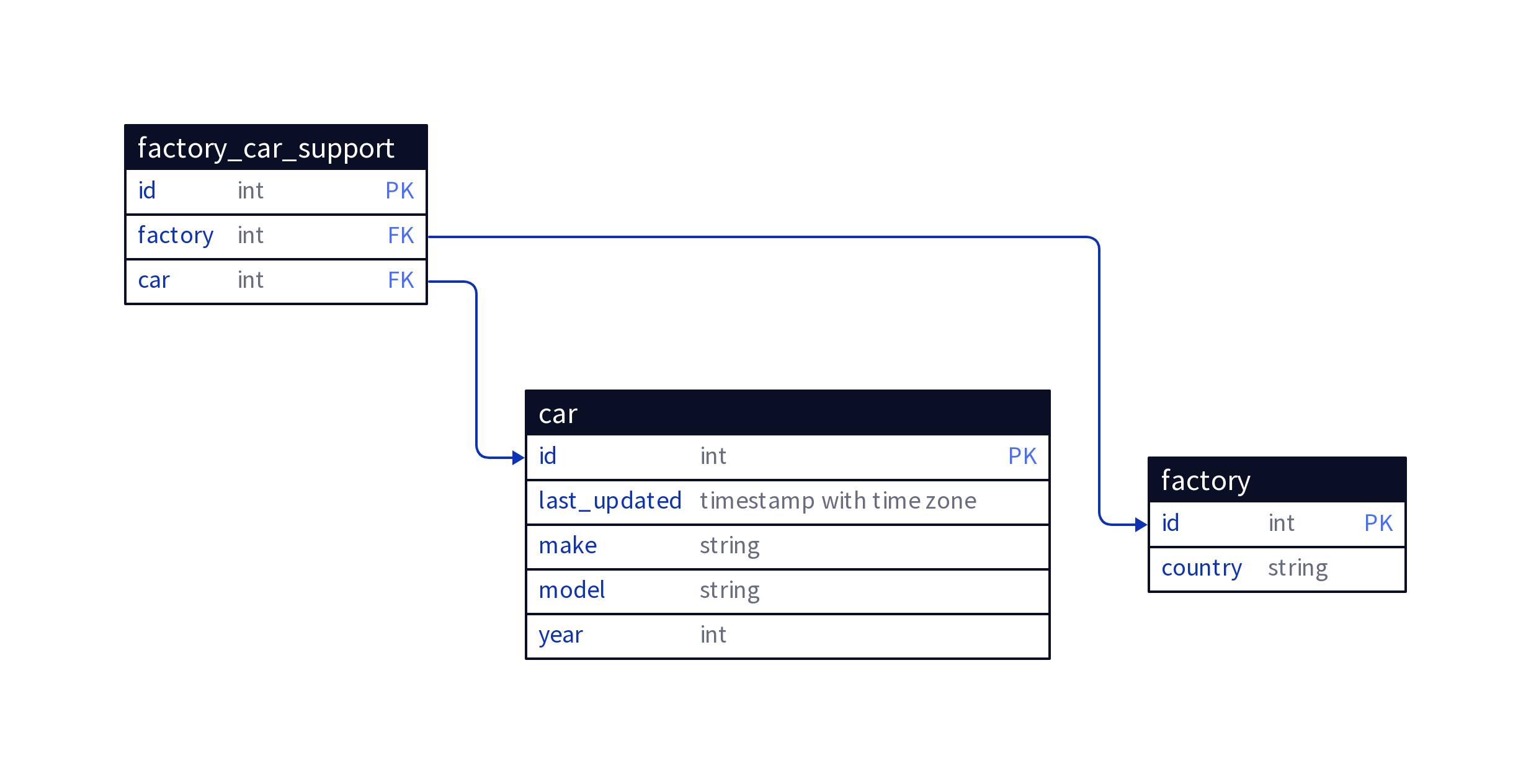
Figure 6: d2 sql-table.d2 sql-table.png –layout elk
注意 shape: sql_table 设置。活动图(activity diagram)
# file: activity.d2
Start: "" {
  shape: circle
  width: 30
}
End: "" {
  shape: circle
  width: 30
}

Start -> Still
Still -> End

Still -> Moving
Moving -> Still
Moving -> Crash
Crash -> End
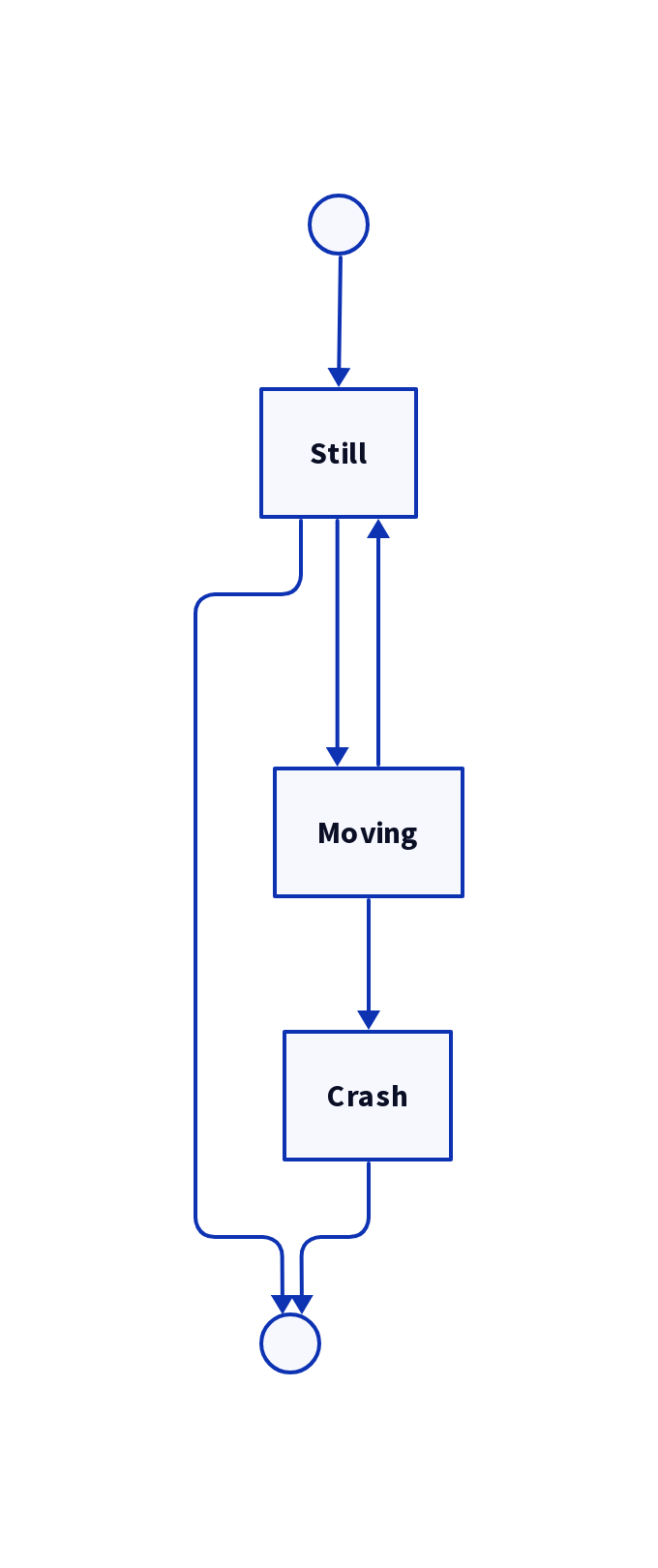
Figure 7: d2 activity.d2 activity.png –layout elk
注意图示文本空格的指定。
文本不只能指定为空格,文本还可以指定为 markdown
# file: md.d2
a:|||md
  # 1. 使用 Markdown 制作文本
  - 使用标题
  - 使用代码
    ```markdown
       # 如何用 D2 输出 PPTX
       1. 使用 Markdown 制作文本
       2. 使用 layers 制作分页
       3. 使用其他元素丰富内容
    ```
  - 转换命令
    ```sh
       d2 input.d2 output.pptx
    ```
  - 使用表格
    | A | B | C |
    |---|---|---|
    | a | b | c |
  |||{
    shape: rectangle
  }
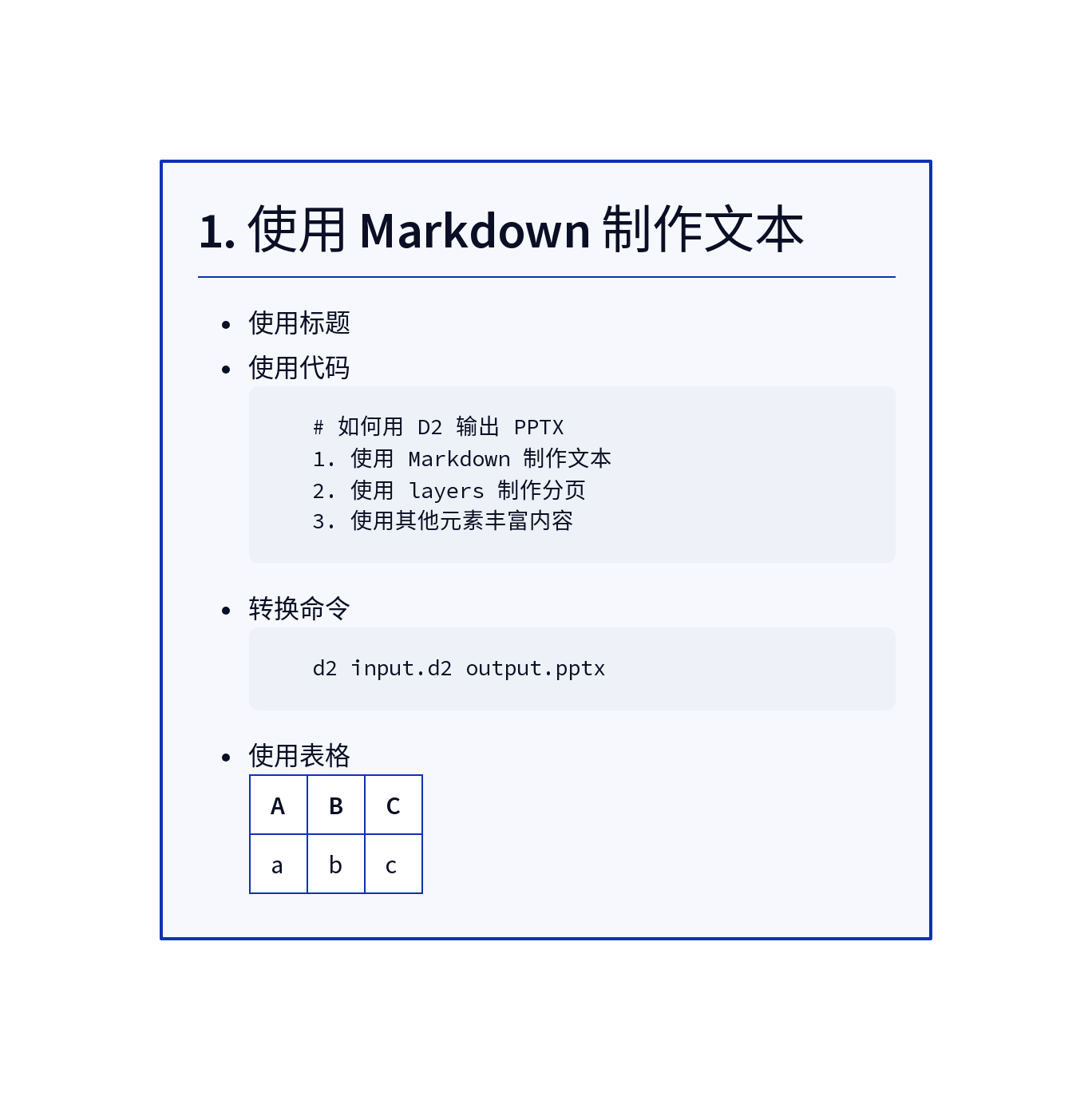
Figure 8: markdown 的使用
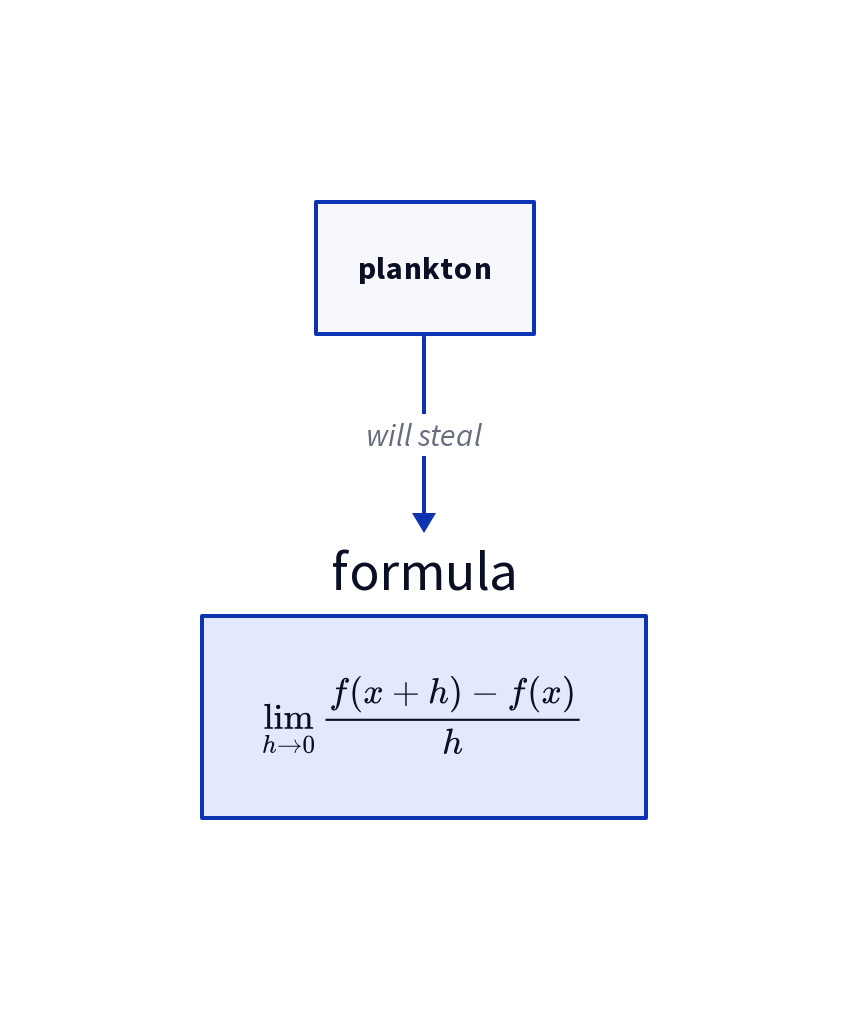
可以使用 latex
# file: latex.d2
plankton -> formula: will steal
formula: {
  equation: |latex
    \lim_{h \rightarrow 0 } \frac{f(x+h)-f(x)}{h}
  |
}
可以用来显示代码
hash: |go
  func RegisterHash(h Hash, f func() hash.Hash) {
        if h >= maxHash {
                panic("crypto: RegisterHash of unknown hash")
        }
        hashes[h] = f
  }
|
hello world: |python
  def hello():
    print "world"
|
x -> hash -> y
x -> hello world
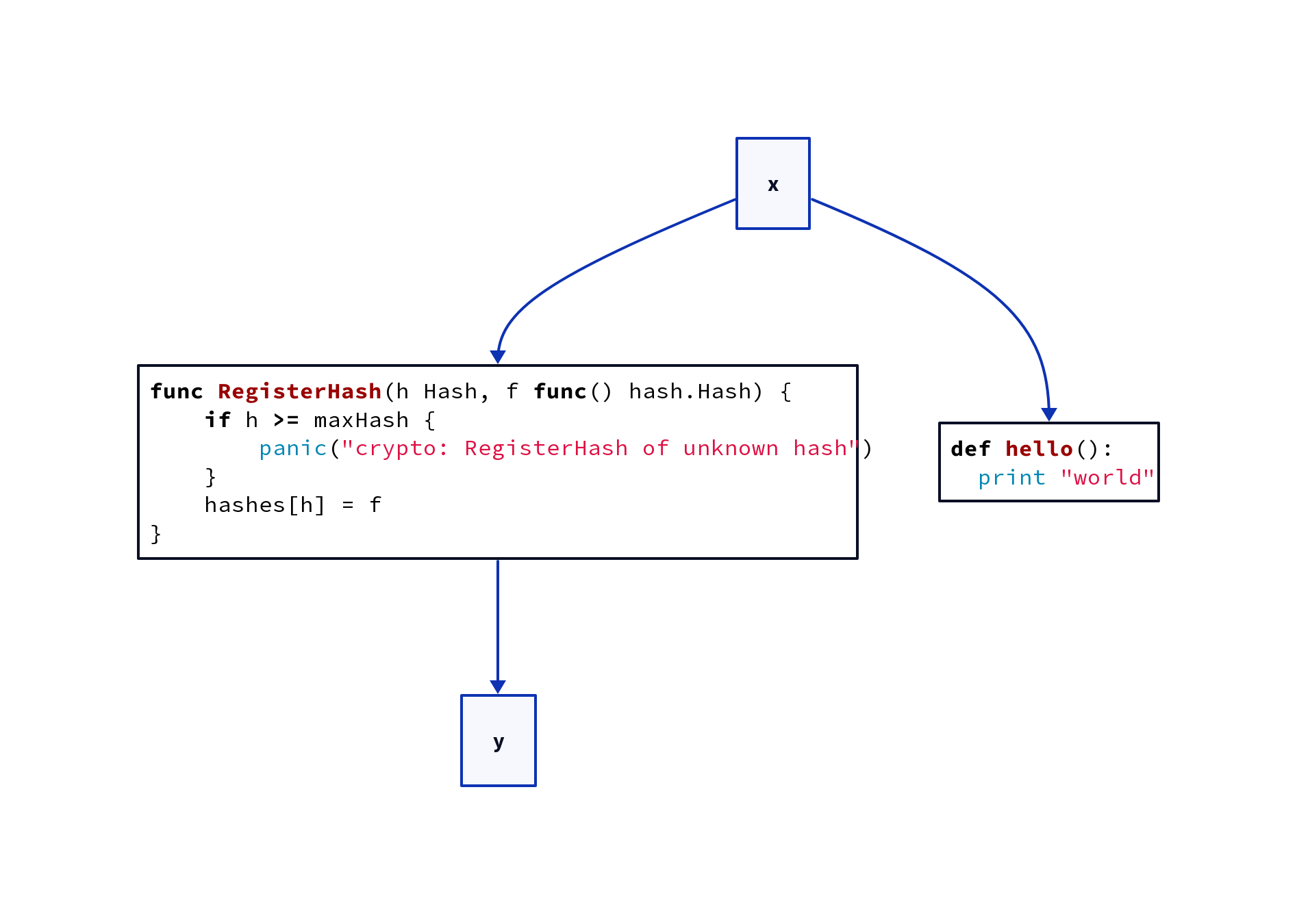
Figure 9: 显示代码
这样原则上,引入 layers d2 可以用来画 PPTX 了。
d2 pptx.d2 pptx.pptx
# file: pptx.d2
text: |md
  # 如何用 D2 输出 PPTX
  1. 使用 Markdown 制作文本
  2. 使用 layers 制作分页
  3. 使用其他元素丰富内容
  |
layers: {
  1: {
    text: |md
      # 1. 使用 Markdown 制作文本
      - 使用标题
      - 使用代码
        ```markdown
           # 如何用 D2 输出 PPTX
           1. 使用 Markdown 制作文本
           2. 使用 layers 制作分页
           3. 使用其他元素丰富内容
        ```
      - 转换命令
        ```sh
           d2 input.d2 output.pptx
        ```
      |
  }

  2: {
    text: |md
      # 2. 使用 layers 制作分页
      - 参见本页 d2 代码
      |
  }
  3: {
    text: |md
      # 3. 使用其他元素丰富内容
      | {
        near: top-center
      }
    container: 流程图 {
      direction: right
      A -> B -> C
      near: bottom-center
    }
  }
}
不忘初心,牢记使命。D2 故事到此转了一圈。有一点点讽刺味道。不过,注意,
D2 语法并没有“太过”复杂,仍然保持简单一致。 layers 扩展了多页画板(board)
- layers : 不继承,从空白画板开始
- scenarios : 从root画板继承,从根画板
- steps : 从上一页画板继承
此外再无更多复杂度引入,也算是可以了。